---
title: Work Schedule Settings
description: Learn how to configure work schedule settings to control when employees can clock in, set working hours for automatic clock in/out, and manage exceptions for specific users.
---
[Skip to content](https://help.timeero.com/work-schedule-settings#main-content)
English
Show submenu for translations
[![logo - 512.png\]](https://help.timeero.com/hs-fs/hubfs/logo%20-%20512.png?width=75&height=75&name=logo%20-%20512.png)](https://timeero.com)
Open main navigation
Close main navigation
- English
Show submenu for translations
- [Go to timeero.com](https://timeero.com/)
[Go to timeero.com](https://timeero.com/)
Help Center
- There are no suggestions because the search field is empty.
1. [Help Center](https://help.timeero.com/?hsLang=en)
2. [Company Settings](https://help.timeero.com/company-settings?hsLang=en)
3. [Main Settings](https://help.timeero.com/company-settings?hsLang=en#main-settings)
# Work Schedule Settings
### Learn How to:
- Set your team's working hours to restrict early manual clock ins.
- Configure work hours for Auto Clock In/Out.
### How Do I Configure Work Schedules?
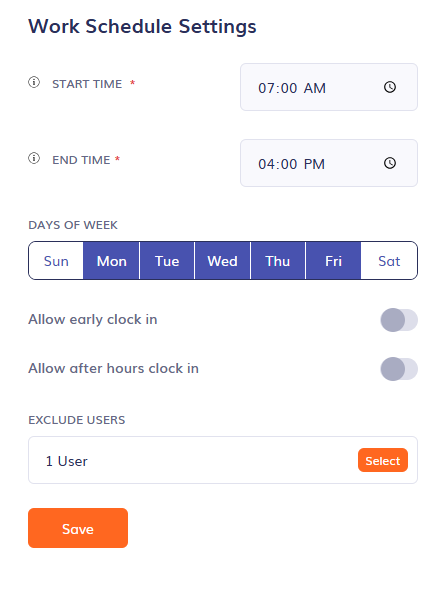
1. Navigate to the **Company Settings** and select the **Work Schedule Settings** menu.
2. Enter a **Start Time** to reflect the earliest time your users should clock in.
3. Enter an **End Time** to reflect the latest time your users can clock in.
4. Select the **Days of the Week** that your users are allowed to work.
*On any days not selected, your users will not be able to clock in.*
5. Toggle the following options, if applicable:
1. **Allow early clock in** - Let your users clock in before the Start Time
2. **Allow after hours clock in** - Let your users clock in after the End Time
6. Select any users that should be excluded from these settings. These users will be able to clock in any day at any time.
Work Schedule Settings never affect a user's ability to **clock out**. Users can always clock out any day at any time, regardless of these settings.
### What Do Users See When they Clock In Outside of These Hours?
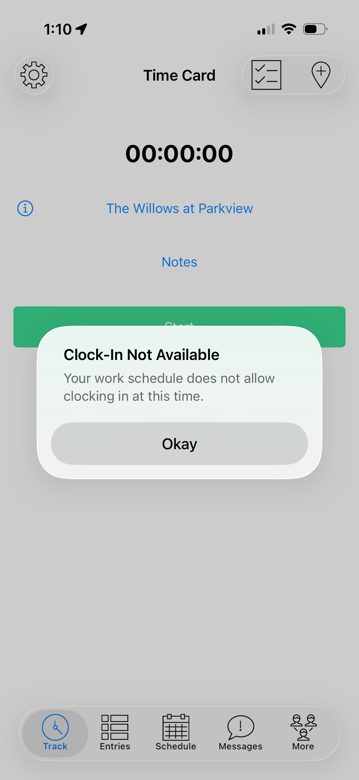
If a user tries to clock in outside of the Work Schedule hours configured in the account, they will receive an error message that says
"*Clock-In Not Available - Your work schedule does not allow clocking in at this time.*"
### FAQs
##### How Does this Affect my Automatic Clock In/Out Settings?
If you have Auto Clock In/Out enabled in your account, you must have your Work Schedule Settings configured. If no working hours are outlined, your users will never be clocked in, regardless of their arrival at a geofenced site.
##### Can my users be automatically clocked in outside of these working hours?
No they will not be automatically clocked in. The Work Schedule Settings determines when to allow Auto Clock In to trigger. If there is no schedule set under Work Schedule, no user will be clocked in regardless of location.
- [Getting Started](https://help.timeero.com/getting-started?hsLang=en#main-content)
- [First Steps](https://help.timeero.com/getting-started?hsLang=en#first-steps)
- [Users](https://help.timeero.com/getting-started?hsLang=en#users)
- [Jobs & Tasks](https://help.timeero.com/getting-started?hsLang=en#jobs-tasks)
- [Scheduling](https://help.timeero.com/getting-started?hsLang=en#scheduling)
- [Company Settings](https://help.timeero.com/company-settings?hsLang=en#main-content)
- [Main Settings](https://help.timeero.com/company-settings?hsLang=en#main-settings)
- [Break Settings](https://help.timeero.com/company-settings?hsLang=en#break-settings)
- [Premium Settings](https://help.timeero.com/company-settings?hsLang=en#premium-settings)
- [Billing](https://help.timeero.com/billing?hsLang=en)
- [Advanced Tracking Options](https://help.timeero.com/advanced-tracking-options?hsLang=en#main-content)
- [Auto Clock In/ Out](https://help.timeero.com/advanced-tracking-options?hsLang=en#auto-clock-in-out)
- [Timesheets, Mileage & Location Tracking](https://help.timeero.com/timesheets-mileage-location-tracking?hsLang=en#main-content)
- [Time & Mileage page on the Web Portal](https://help.timeero.com/timesheets-mileage-location-tracking?hsLang=en#time-mileage-page-on-the-web-portal)
- [Entries Tab on the Mobile App](https://help.timeero.com/timesheets-mileage-location-tracking?hsLang=en#entries-tab-on-the-mobile-app)
- [Kiosk App](https://help.timeero.com/timesheets-mileage-location-tracking?hsLang=en#kiosk-app)
- [Multi-Level Approvals](https://help.timeero.com/timesheets-mileage-location-tracking?hsLang=en#multi-level-approvals)
- [Integrations](https://help.timeero.com/integrations?hsLang=en#main-content)
- [MCP](https://help.timeero.com/integrations?hsLang=en#mcp)
- [Gusto](https://help.timeero.com/integrations?hsLang=en#gusto)
- [ADP Workforce Now](https://help.timeero.com/integrations?hsLang=en#adp-workforce-now)
- [ADP RUN](https://help.timeero.com/integrations?hsLang=en#adp-run)
- [QuickBooks Online](https://help.timeero.com/integrations?hsLang=en#quickbooks-online)
- [Zapier](https://help.timeero.com/integrations?hsLang=en#zapier)
- [Paychex](https://help.timeero.com/integrations?hsLang=en#paychex)
- [Sandata EVV](https://help.timeero.com/integrations?hsLang=en#sandata-evv)
- [Paylocity](https://help.timeero.com/integrations?hsLang=en#paylocity)
- [Rippling](https://help.timeero.com/integrations?hsLang=en#rippling)
- [QuickBooks Desktop](https://help.timeero.com/integrations?hsLang=en#quickbooks-desktop)
- [Xero](https://help.timeero.com/integrations?hsLang=en#xero)
- [PIMSY](https://help.timeero.com/integrations?hsLang=en#pimsy)
- [Paycor](https://help.timeero.com/integrations?hsLang=en#paycor)
- [Sage Intacct](https://help.timeero.com/integrations?hsLang=en#sage-intacct)
- [Viventium](https://help.timeero.com/integrations?hsLang=en#viventium)
- [BambooHR](https://help.timeero.com/integrations?hsLang=en#bamboohr)
- [Reports](https://help.timeero.com/reports?hsLang=en)
- [Employee Resources](https://help.timeero.com/employee-resources?hsLang=en#main-content)
- [Getting Started](https://help.timeero.com/employee-resources?hsLang=en#getting-started)
- [Configure Settings](https://help.timeero.com/employee-resources?hsLang=en#configure-settings)
- [Managing Time & Mileage](https://help.timeero.com/employee-resources?hsLang=en#managing-time-mileage)
- [Time Off Management](https://help.timeero.com/time-off-management?hsLang=en)
- [In-App Messaging](https://help.timeero.com/in-app-messaging?hsLang=en#main-content)
- [Message Blasts](https://help.timeero.com/in-app-messaging?hsLang=en#message-blasts)
- [Product Updates](https://help.timeero.com/product-updates?hsLang=en)
- [Frequently Asked Questions](https://help.timeero.com/frequently-asked-questions?hsLang=en)
# Timeero
For further assistance, contact our support team: +1 (888) 998-0852 or email us: hello@timeero.com
© 2026 by Timeero LLC.