![logo - 512.png]](https://help.timeero.com/hs-fs/hubfs/logo%20-%20512.png?width=75&height=75&name=logo%20-%20512.png)
- View which of your users are currently working at any time from the web portal or mobile app.
- Users with different permissions can only see certain users on the Who's Working page view.
- Refine the view per group, per working status, by role, or by user.
What does the Who's Working page show me?
See a live view of which employees are currently working/clocked in. When you click on a user's name, it will shift the focus to their route, to show where they are currently and where they've been so far while on the clock.
- The white dot shows where they started working.
- Their initials/profile picture show their most recent location.
- The purple line throughout shows their route since their most recent start time.
- You can click Show Breadcrumbs to see each of the GPS pings we captured since they started working.
(They are typically captured every 150 feet of movement.)
Who can see the Who's Working page?
Admins will be able to view all currently clocked in employees.
Managers can only view employees that are in the same group as them.
Employees can view employees that they are in a group with, but only if an admin has turned on the "View Who's Working" permission in their user profile.
Can I filter the view on the Who's Working page?
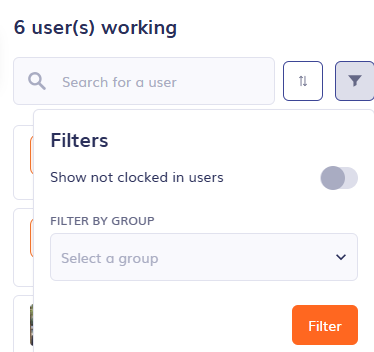
You can search for a particular user using the search bar. By default, the list will be sorted by users' first names, but you can also sort the list by Role type. You can filter the list to show only the users who are not currently working or to only show a certain group at one time.
How can I see the Who's Working page from the mobile app?
The mobile apps will look a little different, but will still provide you with the same information as the web portal.
The Who's Working page is located in the More tab. You can click the List button in the upper right corner to show the list of working employees, and you can zoom into their location and route by clicking their names.
FAQs
My user says they're clocked in, but I can't see them on the Who's Working page?
Our mobile app syncs to the server every 5-10 minutes. If you don't see them on the Who's Working page yet, we may not have captured that information from their mobile app yet. They could also have clocked in at an area with poor service, in which case, they may not appear until they have better signal. Lastly, maybe they didn't complete the clock-in process successfully. You can have the Manually Sync the app and try to clock in again.
Why can't I see the Who's Working page map?
If you're a manager or an employee, your permissions may not allow you to see the Who's Working page. If they do, or if you're an admin, it may be a temporary issue with your browser. Please try using Google Chrome or a different browser to see the map.
Can I see additional information on the Who's Working page?
Currently, only basic information can be seen on the Who's Working page. For a more detailed view, go to the Time & Mileage page and view the individual timesheet.
I can't see my user's breadcrumbs.
Perhaps they haven't moved more than 150 feet since they clocked in.
Does this show their live location?
Technically, no. We show their most recently captured location. It could represent their current location, but it could also be delayed due to the natural syncing delays or poor service.