![logo - 512.png]](https://help.timeero.com/hs-fs/hubfs/logo%20-%20512.png?width=75&height=75&name=logo%20-%20512.png)
Learn How to:
-
Troubleshoot common auto-clock issues for accurate reporting.
What are Some Troubleshooting Steps For My Current Automatic Clock in/out Setup?
If automatic clock in/out is not working, please double-check the following items:
- Make sure the tracker checklist is set to 100%.
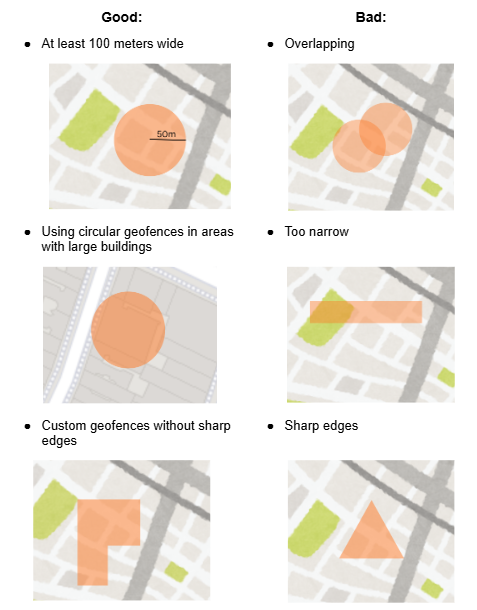
- The geofence boundaries are at least 100 meters in radius.
- The Work Schedule hours are set for the correct period.
- Ensure that background tracking is set to Allow Always. If location access is set to only "While Using the App," inaccuracies may occur.
- Ensure that battery saver mode on the user's device is turned off. This setting directly affects auto clock in/out capabilities.
What Are Some Examples of Good and Bad Geofences?
FAQ?
When should I contact support about Auto Clock In/Out issues?
If you have already reviewed the checklist, confirmed the geofence setup, verified location permissions, and checked the user’s location settings, but automatic punches still are not happening as expected, it is a good time to contact support.