![logo - 512.png]](https://help.timeero.com/hs-fs/hubfs/logo%20-%20512.png?width=75&height=75&name=logo%20-%20512.png)
Learn How to:
-
Set up a kiosk station for all your employees to clock in in the same place.
- Create multiple kiosks if you have employees clocking in at different locations.
*The Timeero Kiosk app is currently only compatible with iPad devices.
How Do I Set up My Employees to Clock in Through the Kiosk App?
Before using the kiosk app, the Admin must assign a Kiosk Code to each user.
-
Log into the web portal and opening the Users menu.
-
Select Edit User.
-
Assign the user a Kiosk PIN.
- Select Update User at the bottom to save the changes.
How Can I Enable the Kiosk App?
-
Go to Company Settings > General.
-
Find the option at the bottom to Enable Kiosk app.
-
Save your settings.

How Can I Add and Manage Kiosks?
- From your Company Settings, select Kiosk Management on the left hand side.
-
Select Add new kiosk.
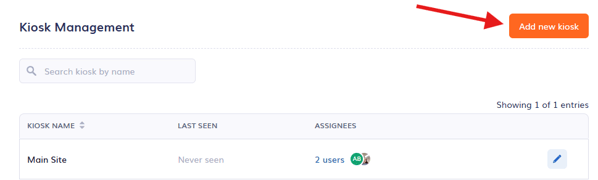
- Name the kiosk and select users or groups that you want to clock in through this kiosk station.
-
If using facial recognition, ensure that Require user's photo is turned on.
- Select Create.
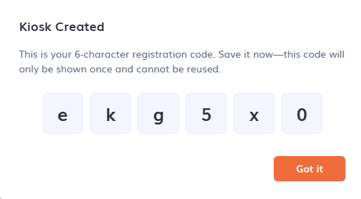
- You will be given a 6- character sign-in code. This code will need to be saved and cannot be re-used for another kiosk.
How do I Set up the Kiosk App on the iPad?
-
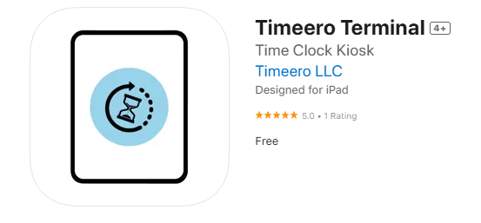
To download the kiosk app to your iPad, head to the app store and search for Timeero Terminal.
2. Once the app is installed, log in as a manager or admin.
3. Enter the 6 character code.
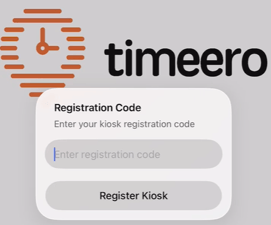
4. Select Register Kiosk.
*If you lose the kiosk code you will have to regenerate a new code.
*Only Admins and Managers can log into the Timeero Terminal/ Kiosk app.
How do I Regenerate a New Code for an Existing Kiosk?
- Click on the pencil icon next to the kiosk you want to edit.
- Click on Regenerate code to retrieve the newest code.
How do I Make Changes to an Existing Kiosk?
If you need to add or remove users to a kiosk, you can easily do so by editing the kiosk.
- Click on the pencil icon next to the kiosk you want to edit.
- Make any changes you need to.
- Select Save Changes at the bottom of the page.
*If you want to delete a Kiosk, you can do so by selecting the pencil icon and then the Trash can icon in the top right corner of the screen.
FAQs
What happens if someone tries to clock out for someone else? Does facial recognition work when stopping time as well as starting time?
Yes, facial recognition works for both. If a mismatch is detected, the system will send an email alert.
What happens if a employee clocks in from the kiosk without an internet connection? Will it still work?
Yes, users can start time offline. The data will sync once the device reconnects to the internet.
What if I need to log into the kiosk app as a different admin or manager?
Currently, there's no log-out option for the kiosk app. To switch users, you’ll need to delete and reinstall the app on the iPad.
Can I track my user's location when they clock in through the kiosk app?
No, the kiosk is meant for stationary employees. If you need to track a user's location, they will need to clock in through the Timeero app on their mobile device.