![logo - 512.png]](https://help.timeero.com/hs-fs/hubfs/logo%20-%20512.png?width=75&height=75&name=logo%20-%20512.png)
.png?width=102&height=63&name=helpdesk%20label%20Add-on2%20(1).png)
Reply to a Specific Message - Reply in a thread - Mark a Message as Unread - Copy a Message Edit a Message - Pin a Message - React with an emoji - FAQs
Learn How to:
- Hover over messages to react, reply, copy the message, and more.
How Can I Reply to a Specific Message on the Web Portal?
- Hover over the message you want to reply to.
- Select the three dots.
- Select Reply.
- Type your message at the bottom.
- Select Enter or the Blue Arrow to send your message.
How Can I Reply to a Specific Message on the Mobile App?
- Hover over the message you want to reply to.
- Select Reply.
- Type your message at the bottom.
- Select the arrow to send your message.
How Do I Reply in a Thread on the Web Portal?
If you are creating a new thread:
- Hover over the message you want to start a thread with.
- Select the arrow icon.

- A sidebar will appear for the new thread. Type your message and send it by selecting the arrow.
To reply to an existing thread:
- Any message that has a thread attached to it will show the number of replies it has below the message. Click on that number to open the thread.
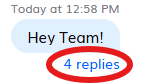
*Only users who sent the original message or have replied to the thread will see notifications for it. If you want to make sure a user sees a message in a thread they have not responded to, you can @ them in a message to notify them.
How Do I Reply in a Thread on the Mobile App?
If you are starting a new thread:
- Hold down on the message you want to start a thread with.
- Select Thread Reply.
- The thread will open and you can send messages as normal.
To reply to an existing thread:
- Follow the same steps outlined for the web portal above.
*If you want to message to send in both the thread and the general chat, you can select the checkbox next to Also send in channel before sending your message.
Can I Mark a Message as Unread?
On the Web Portal:
- Hover over the message.
- Select the three dots.
- Select Mark as unread. That message and everything below it will be marked as unread.
On the Mobile App:
- Hold down on the message.
- Select Mark Unread.
How Do I Copy a Message?
On the Web Portal:
- Highlight the message you would like to copy.
- Right click.
- Select Copy.
On the Mobile App:
- Hold down on the message you want to copy.
- Select Copy Message.
How Do I Edit a Message?
*Only admins will be able to edit messages.
*Only messages you send in group conversations can be edited.
On the Web Portal:
- Hover over the message you want to edit.
- Select the three dots.
- Select Edit Message.
- Edit the message.
- Select SEND.
On the Mobile App:
-
Hold down on the message you want to edit.
- Select Edit Message.
- Edit the message.
- Select the arrow to send it.
Can I Pin A Message?
On the Web Portal:
- Hover over the Message you want to pin.
- Select the three dots.
- Select Pin.
On the Mobile App:
- Hold down on the Message you want to pin.
- Select Pin to conversation.
*The same steps can be followed to unpin a message.
Where Do I View Pinned Messages?
On the Web Portal:
- Click on the Conversation the message is pinned in.
- Select Pinned Message at the top to view all pinned messages within the conversation.
- To view a pinned message in the chat or unpin it, select the three dots next to the message.
*You can also view pinned messages by selecting the group icon at the top and then selecting View Pinned Messages.
On the Mobile App:
- Select the conversation the message is pinned in.
- Select the group icon at the top to view the group details.
- Select View Pinned Messages.
How Do I React to a Message With an Emoji?
On the Web Portal:
- Hover over the message.
- Select the smiley face icon.
- Select one of the five emojis to react.
- Selecting the emoji again will remove the reaction.
On the Mobile App:
- Hold down on the message.
- Reactions will appear above the message. Select one to react.
- Selecting the same reaction again will remove it.
FAQs
What is the difference between replying to a message and replying in a thread?
Replying to a message pulls the original message down to the bottom of the conversation along with your new reply, keeping them visually connected. Replying to a thread creates or adds to a separate, branched discussion that keeps related messages grouped together without cluttering the main channel.
Can I react to a message with more than one emoji?
Yes, we have five emoji reactions available. You can use multiple of them to react to the same message.