![logo - 512.png]](https://help.timeero.com/hs-fs/hubfs/logo%20-%20512.png?width=75&height=75&name=logo%20-%20512.png)
Learn How to:
- You can add multiple tasks at once using a csv template
How Can I Mass Import My Tasks?
-
On the Tasks page of the web portal, click the Import Tasks button in the upper right corner.
-
Click Download Template to receive the blank CSV file and open it in a spreadsheet editor.
-
In Column A, enter the Task name.
-
In Column B, enter "yes" if the task is billable, or "no" if it is not (This is case sensitive).
-
In Column C, enter the Job ID for the job you'd like to assign the task to. You can find the Job ID in the URL of the job in Timeero.
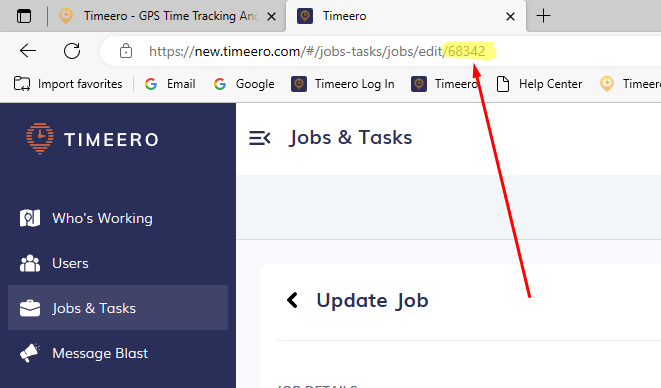
- To assign a task to multiple jobs, separate each Job ID with a comma.
- Enter a description if needed. This field is optional.
- Save the file as a CSV.
- Click the Upload CSV button and select your filled out CSV.
- Match your CSV columns with the corresponding field in Timeero. You can click the Map Common Fields button, and it will try to match columns that have exact name matches; otherwise, pick from the drop-down menu. Fields marked with an * symbol are required fields.
The import may take several minutes, depending on how many tasks you are importing at once.
FAQs
How Do I Input Non-ASCII Characters?
If you are using CSVs to input non-ASCII characters, you will be required to select Unicode encoding. Otherwise, any invalid characters will be marked with a
?.For example, in Microsoft Excel:- Click Save as...
- Click the drop-down menu next to File format
- Select CSV UTF-8 (Comma delimited) (.csv) from the drop-down menu
- Click Save
When editing your spreadsheet in Google Sheets, downloading the file to a .csv will automatically have the UTF-8 form.
Why didn't all of my tasks import?
Some columns are case sensitive. Double check to make sure the formatting matches the template exactly.