![logo - 512.png]](https://help.timeero.com/hs-fs/hubfs/logo%20-%20512.png?width=75&height=75&name=logo%20-%20512.png)
Learn How to:
- Download the csv template.
- Enter the job details in the corresponding columns.
- Import jobs through a csv file.
Where Can I Find the Template to Import Jobs?
-
Go to the Jobs & Tasks page on the web portal.
-
Select Import Jobs.
- Select Download Template.
When importing a CSV file, please note certain fields are case-sensitive and should match template
| Column A, Name | The name for the job you want to appear in Timeero, Required for importing. |
| Columns B & C, Geofencing | If you want the job to require a Geo-Fence, You will need to enter yes in Column C, Enter a no otherwise. Column B is the radius of the Geo-Fence in meters, This must be a number between 100 and 2500 |
| Columns D,E,F,G and H, Address | If you are using a Geo-Fence these fields must be filled out. If you are not using a Geo-Fence then these are optional. |
| Column I, Description | Enter a description if you want users to see it, This is optional. |
| Column J, Rate | Enter an hourly rate if you want to override a user's rate when they are clocked into a job. |
| Column K, Job Code | Enter a Job code here if you need to, This is optional. |

You can include columns for the Latitude and Longitude of a location instead of entering an address and a geofence can be placed accordingly.
How Do I Import the Jobs?
-
Once you have filled out as many jobs as you want to import, save the CSV and then click the Upload CSV button on the sidebar.
-
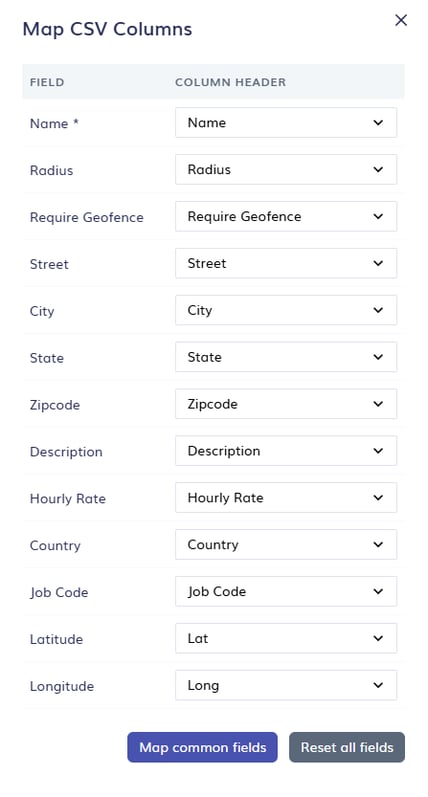
You will then be prompted to match your CSV columns with the correlating field in Timeero.
-
You can click the Map Common Fields button and it will try to match columns that have exact name matches, otherwise pick from the drop down menu.
Fields marked with an * symbol are required fields.
-
Once done, click on Start Import. Depending on how many rows you filled out, it may take a little bit of time for all of the jobs to import to your account.
By default, track mileage will be turned on. You can turn it off after import if it is not required.
FAQs
How Do I Input Non-ASCII Characters?
If you are using CSVs to input non-ASCII characters, you will be required to select Unicode encoding. Otherwise, any invalid characters will be marked with a ?.
- Click Save as...
- Click the drop-down menu next to File format
- Select CSV UTF-8 (Comma delimited) (.csv) from the drop-down menu
- Click Save
Why Did It Only Import Some of My Jobs?
-
If you are on the free trial: you are limited to 20 jobs on the free trial.
-
Certain fields are case sensitive. Go back to your spreadsheet and ensure that the formatting matches the template exactly.
What if I Don't Know the Address?
You can create a job without an address or geofence. However, if you need a geofence and don't have the address, you can find the latitude and longitude on a service like Google Maps. You can enter those details as separate columns in the import spreadsheet and Timeero can create geofences with that data instead of the address.
Can I Assign Specific Users to a Job When I Import it?
No, by default imported jobs will be assigned to all users. If you need to assign specific users to a job you can add it manually, or edit the jobs after importing them. Please see our Adding & Managing Jobs Article for more details on how to do that.