![logo - 512.png]](https://help.timeero.com/hs-fs/hubfs/logo%20-%20512.png?width=75&height=75&name=logo%20-%20512.png)
Learn How to:
- Filter timesheets to easily find the one you are looking for.
- View the details of an employees timesheet.
- Change views on the Time & Mileage Page.
How Do I View Time and Mileage by User?
-
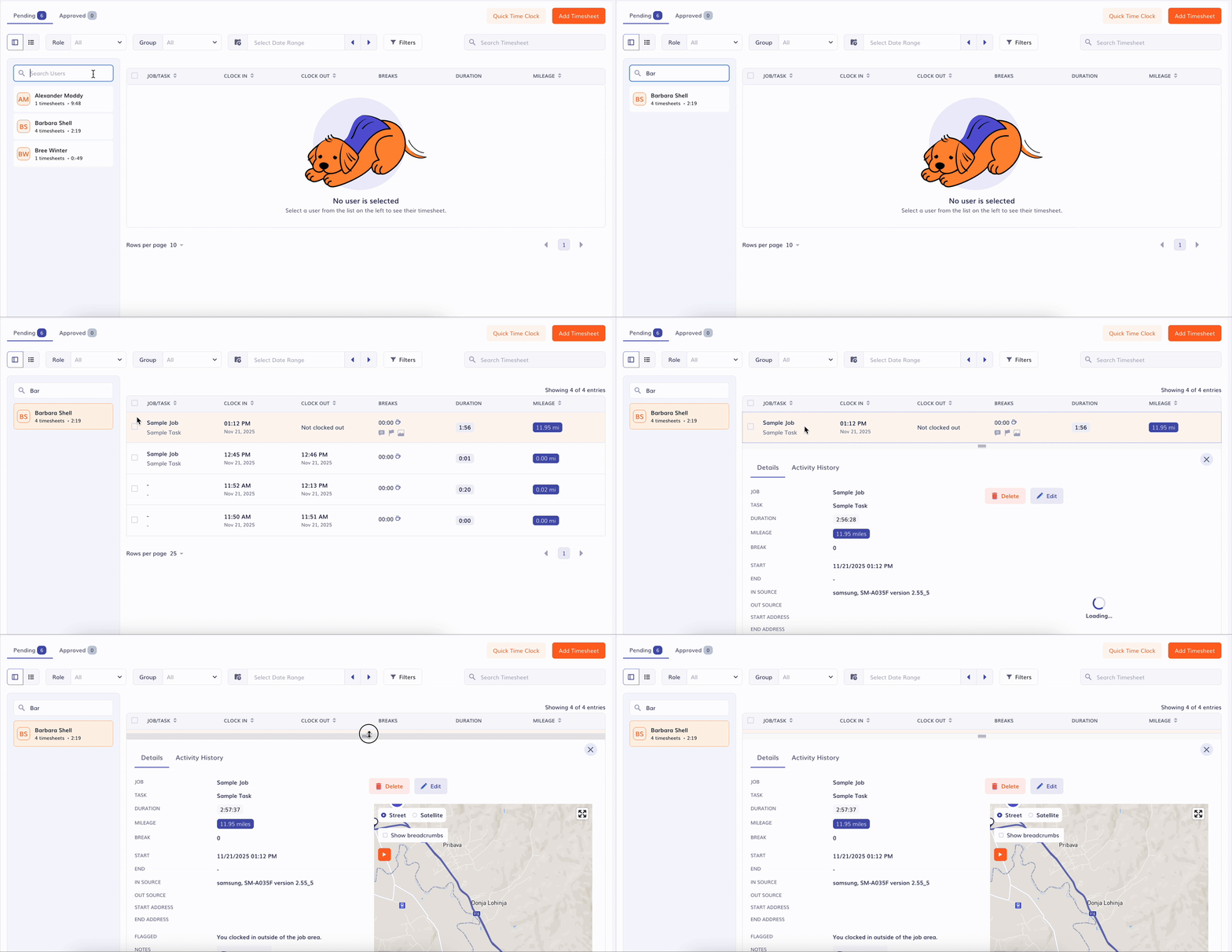
Navigate to the Time & Mileage Page on the web portal.
-
Select a user on the left hand side and instantly see all timesheets for that specific person.
*If you’re looking for someone quickly, you can also search for a user by name.
How Do I Filter Timesheets?
To help you narrow down exactly what you need, you can filter timesheets using:
- Role: view users by Admin, Manager, or Employee
- Group: select a specific group of users to display only their timesheets.
- Date Range: choose any date range manually, or use quick preset filters.
- Today, This week, Last week, This month, or Last month
4. Filters: refine the timesheets even further with Notes, Breaks, Edited, Flagged, Attachments, Signatures, and PTO
5. Search Timesheet: search for a specific timesheet by entering any relevant text, such as notes or job details.
What Does Each Symbol Mean on the Timesheets?
Symbols indicate what a timesheet includes before you view the details.
 The Edit Icon indicates that the Clock in/out time has been edited. This symbol only appears when the time has been changed.
  The Break Icon indicates that at least one break has been taken.
  The Attachments Icon indicates that at least one photo attachment has been added to the timesheet.
  The Notes Icon indicates that a note has been added to the timesheet.
  The Flag Icon represents a flagged entry. Flagged timesheets will be highlighted in peach. Hover over the flag icon to view the flagged reason.
- Flagged Reasons include:
- A user clocks into a job, outside of the geofence boundary.
- A user's clocks out after they exceed a certain number of hours.
- A user has a face mismatch while using face recognition (kiosk app only).
- A user gets automatically stopped time after they turn off their GPS (premium plan only).
- Flagged Reasons include:
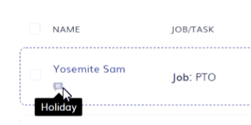
*The notes icon also represents the name of a time off category. For example, Sam requests time off using the time off category 'Holiday'. If the request is approved & a timesheet is created, the job name will be PTO and the note will be Holiday.
How Do I See a Detailed Time and Mileage View?
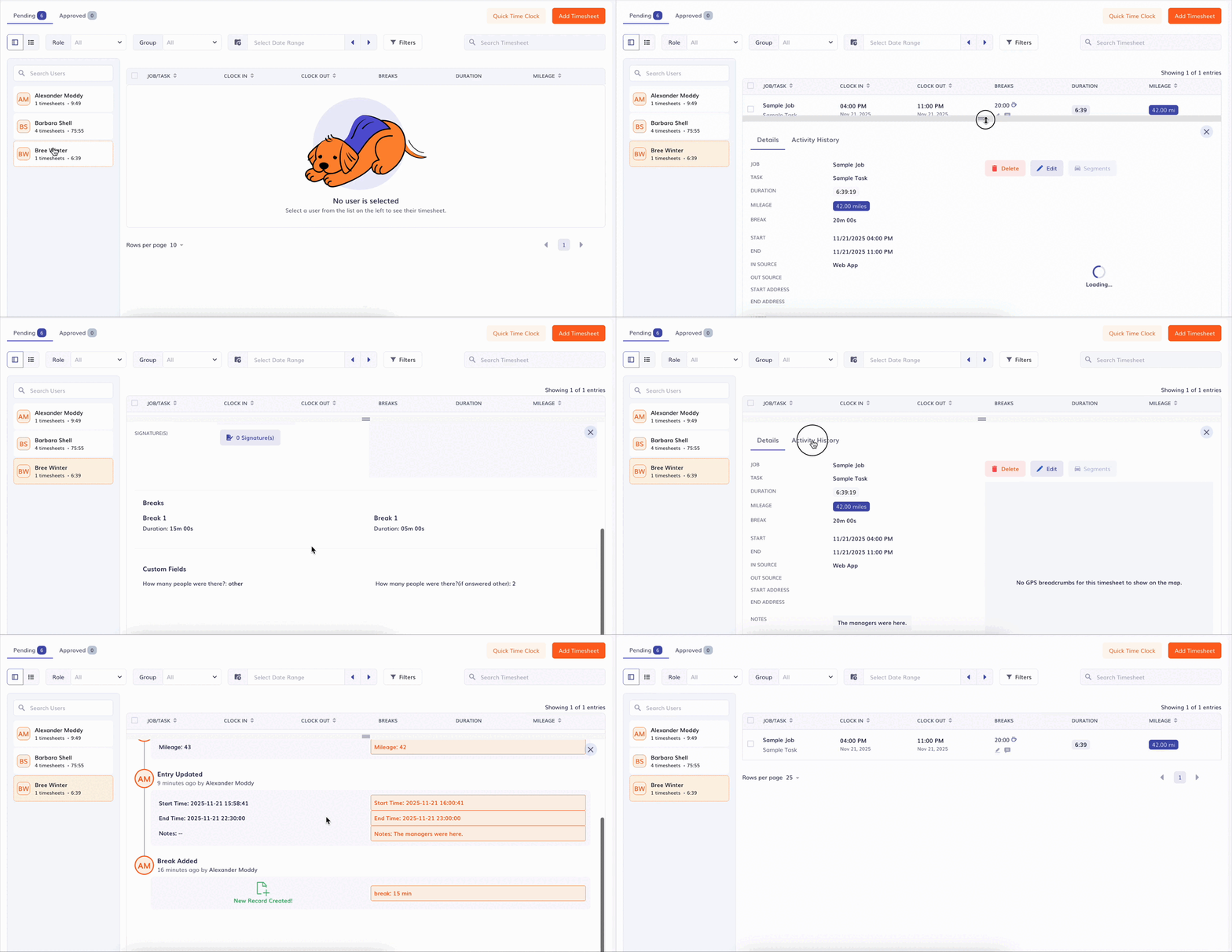
Clicking on a timesheet opens a detailed view, giving you access to two sections: Details and Activity History.
Details include:
- Job & Task.
- Duration & Mileage.
- Start & End times.
- In & Out sources.
- Flagged reasons.
- The route the employee took.
- Notes, Custom fields, Attachments, & Signatures.
Activity History
Here you can review the updates made on the timesheet.
How Do I Change the Time & Mileage Page View?
-
If you prefer a different experience on the Time & Mileage Page, you can select the List icon at the top of the page to see a chronological list of all timesheets.

- You can still use the same filters and search for specific users.
- Use the different icons on the timesheet to view routes and details.
 Use the map pin icon to see the user's route.
 Use the eyeball icon to view the timesheet details.
  If you have Segmented Tracking, use the car icon to view segments.
  Use the lightning bolt icon to approve a timesheet.
  Use the pencil icon to update a timesheet.
  Use the trash can icon to delete a timesheet.
How do I Approve or Delete Timesheets?
- Select the checkbox on the left hand side of a timesheet.
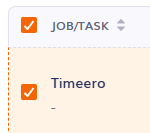
- Select Approve or Delete.
- If Approving, Choose whether or not you want to notify your employees of the timesheet approval then select Approve.
- If Deleting, confirm that you understand the action cannot be undone by selecting Delete again.
*If you want to mass approve or delete timesheets you can select the checkbox at the very top of the page.
FAQs
I prefer the list view on the Time & Mileage Page. Is there a way to set that as the default?
No, you will have to click on the list icon each time to open the page to switch to that view.
Does this page show totals for the date range selected?
No, in order to see totals for a specific date range, you will need to run a report on the Reports tab.
How do I see segmented tracking?
Select "Segments" above the route when you are viewing the timesheet details. Segmented tracking is an add-on feature. If you do not see this option, you likely do not have the Segmented Tracking feature and can purchase it on the Account & Billing page of your web portal.