![logo - 512.png]](https://help.timeero.com/hs-fs/hubfs/logo%20-%20512.png?width=75&height=75&name=logo%20-%20512.png)
Learn How to:
- View a User's Route Map on the Time & Mileage page.
How do I View my User's Route?
- Navigate to the Time & Mileage Page on the Web Portal.
- Select the user you want to see.
- Select a timesheet.
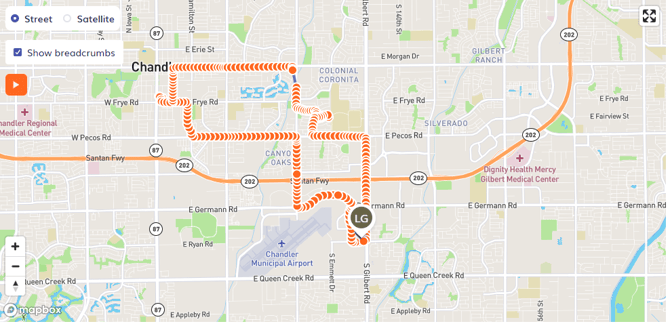
- The route map will either appear below the timesheet details or to the right of it depending on your screens' configuration.
- In order to see the exact location points check the box next to Show breadcrumbs.
- Click on the orange dots to see timestamps and speed.
- The white pin indicates where the user clocked in.
- The pin with the user's profile picture or initials indicates where the user clocked out.
FAQ:
What do the Icons Mean?
 Select this icon to show a time-lapse of the route.
 The user has clocked in.
 The user has clocked out.
 This is a breadcrumb — a timestamp of the user's current location.
Is it possible to see how long my employees were at each location?
Yes with the Segmented Tracking Feature. If you have the feature you will be able to see that information in the segmented portion of the view.
Can I see my users location in Reports?
We do not have a report that shows the map view of a route, however there are a few options for viewing locations in reports:
- The Data Export Report shows GPS coordinates.
- If you have the segmented tracking feature, you can run a Segmented Tracking Report.
- Start and end locations can be show on reports if you are on the Premium plan.
Why can't I see my employee's route?
If you need help with troubleshooting a route map that doesn't look right to you, please check out our article here.