![logo - 512.png]](https://help.timeero.com/hs-fs/hubfs/logo%20-%20512.png?width=75&height=75&name=logo%20-%20512.png)

*ChatGPT requires a paid plan (Plus, Pro, Business, Enterprise, or Edu). On workspace plans, an admin may need to allow custom MCP servers first.
What do I Need to do Before Starting?
- Have your Public API key ready from Integrations → Public API → Configuration.
- MCP URL:https://mcp.timeero.com/mcp.
- Use the ChatGPT desktop app.
*The steps listed here will only work with the ChatGPT Desktop App.
How do I Connect Timeero in ChatGPT?
- In ChatGPT, open Settings → Plugins.
- Add an MCP server.
- Set the name to Timeero.
- Set the type to Streamable HTTP.
- Set the MCP URL to https://mcp.timeero.com/mcp.
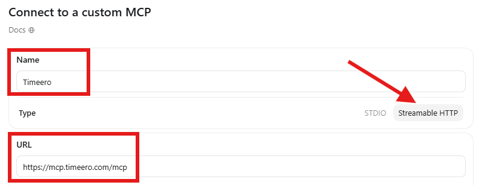
- Scroll to the bottom and click Save.

- Open the MCPs list and Authenticate the Timeero MCP.
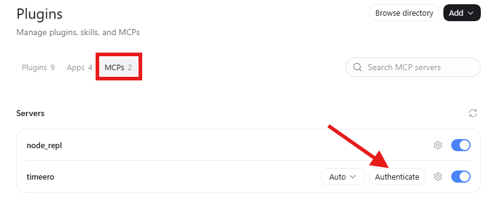
- Paste your Public API key and click Connect.
- On the authorize screen, choose whether ChatGPT may write and/or delete Timeero data (read access is always included).
- Click Allow access.
- In a new chat, enable the Timeero MCP from the tools menu.
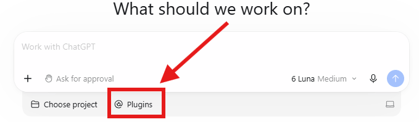
- Ask a question about Timeero.
What do I do Once it is Enabled?
Test it out with one of the following prompts:
- “Show time and mileage for the Field Crew group last week.”
- “Who is clocked in right now?”
- “List my jobs.”
Confirm any write actions ChatGPT prompts you to approve.