![logo - 512.png]](https://help.timeero.com/hs-fs/hubfs/logo%20-%20512.png?width=75&height=75&name=logo%20-%20512.png)

*ChatGPT requires a paid plan (Plus, Pro, Business, Enterprise, or Edu). On workspace plans, an admin may need to allow custom MCP servers first.
What do I Need to do Before Starting?
- Have your Public API key ready from Integrations → Public API → Configuration.
- MCP URL:https://mcp.timeero.com/mcp.
- Use the ChatGPT desktop app.
*The steps listed here will only work with the ChatGPT Desktop App. If you would like to use the web browser, please use our article for Connecting to ChatGPT through the web browser.
How do I Connect Timeero in ChatGPT?
- In ChatGPT, open Settings → Plugins.
- Add an MCP server.
- Set the name to Timeero.
- Set the type to Streamable HTTP.
- Set the MCP URL to https://mcp.timeero.com/mcp.
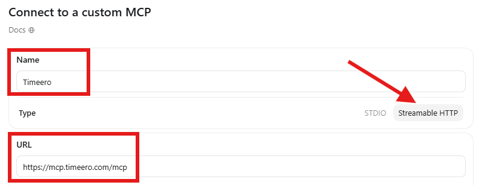
- Scroll to the bottom and click Save.

- Open the MCPs list and Authenticate the Timeero MCP.
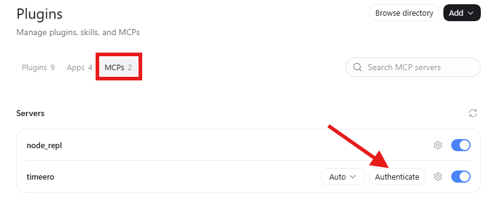
- Paste your Public API key and click Connect.
- On the authorize screen, choose whether ChatGPT may write and/or delete Timeero data (read access is always included).
- Click Allow access.
- In a new chat, enable the Timeero MCP from the tools menu.
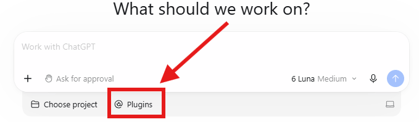
- Ask a question about Timeero.
What do I do Once it is Enabled?
Test it out with one of the following prompts:
- “Show time and mileage for the Field Crew group last week.”
- “Who is clocked in right now?”
- “List my jobs.”
Confirm any write actions ChatGPT prompts you to approve.