![logo - 512.png]](https://help.timeero.com/hs-fs/hubfs/logo%20-%20512.png?width=75&height=75&name=logo%20-%20512.png)
Learn How to:
- Review and Manage Timesheets in a fast, clear, and flexible manner.
- Use the recent update for a modern, streamlined experience.
- Keep the classic view if you prefer it.
How Do I Switch Between New and Old Views?
With this release, you can now switch effortlessly between the new time and mileage view and the old view.
From the Time & Mileage page:
- Click the New View icon to access the updated layout
- Click the Old View icon to return to the original layout
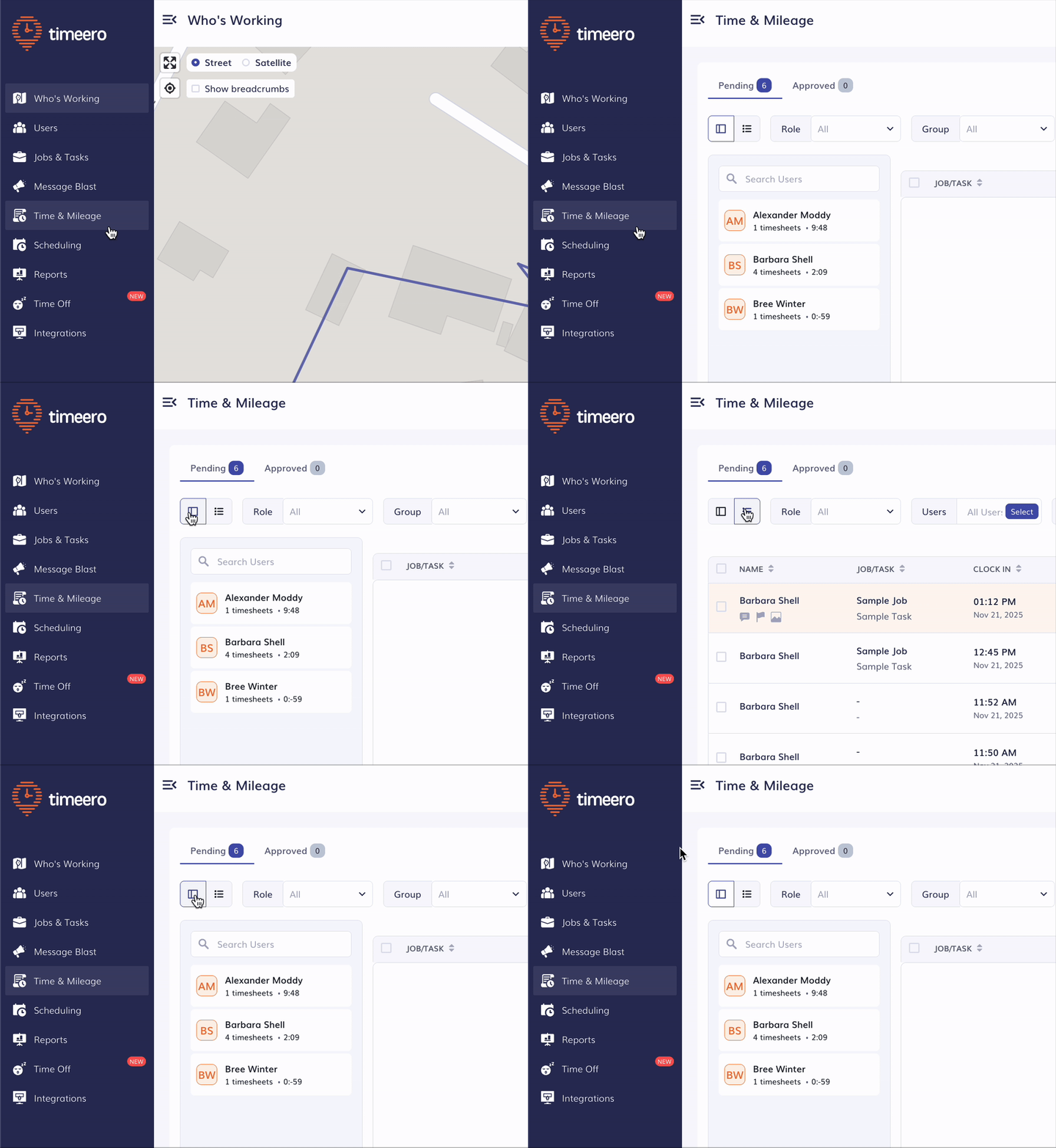
This flexibility allows you to adopt the new interface at your own pace.
How Do I View Time and Mileage by User?
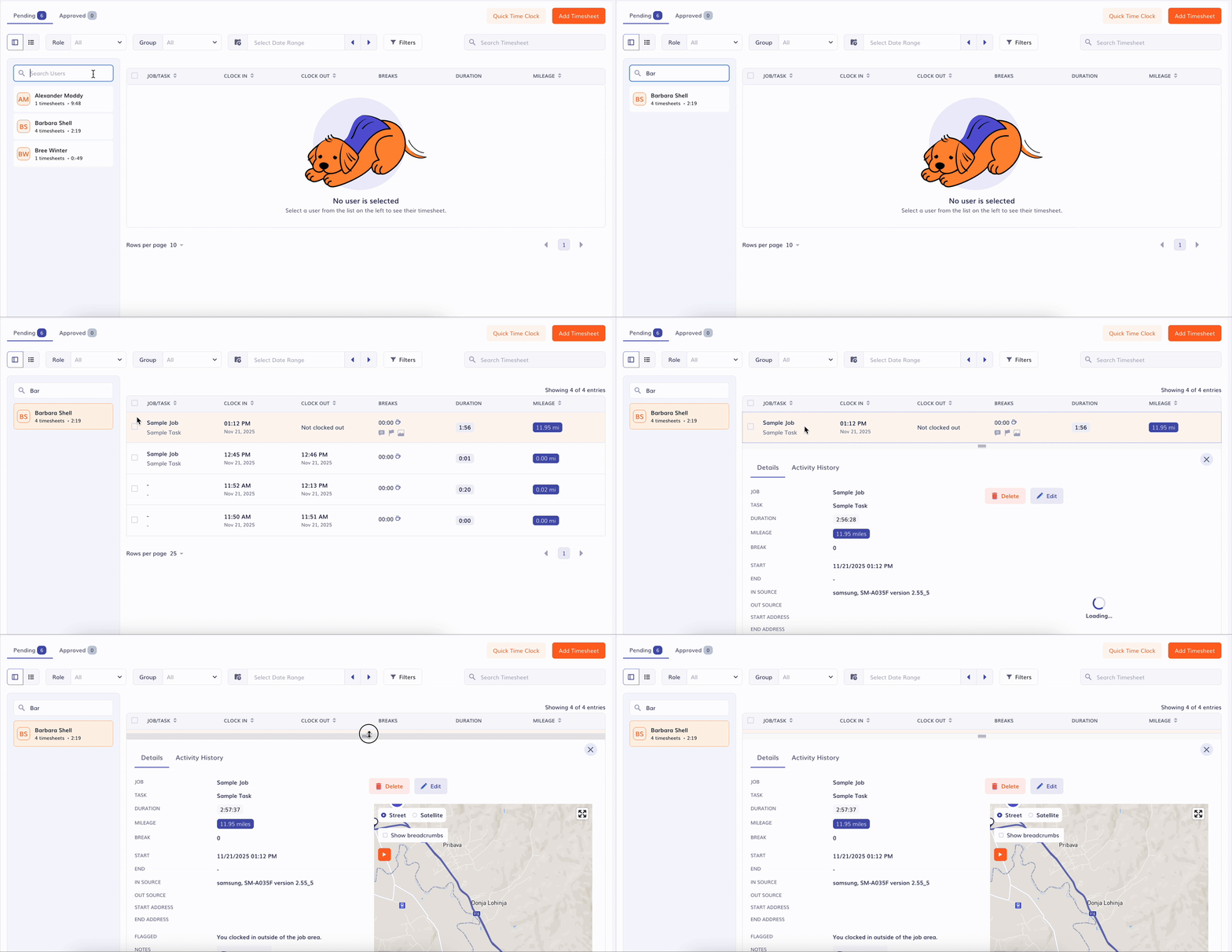
In the new view, you can now select a user and instantly see all timesheets for that specific person.
Just choose a user from the list, and the page will display their full list of entries.
If you’re looking for someone quickly, you can also search for a user by name.
How Do I Filter Timesheets?
To help you narrow down exactly what you need, you can filter timesheets using:
1. Role
View users by:
- Admin
- Manager
- Employee
2. Group
Select a specific group of users to display only their timesheets.
3. Date Range
Choose any date range manually, or use quick preset filters:
- Today
- This week
- Last week
- This month
- Last month
4. Filters
Refine the timesheets even further with:
- Notes
- Breaks
- Edited
- Flagged
- Attachments
- Signatures
- PTO
5. Search Timesheet
Search for a specific timesheet by entering any relevant text, such as notes or job details.
How Do I See a Detailed Time and Mileage View?
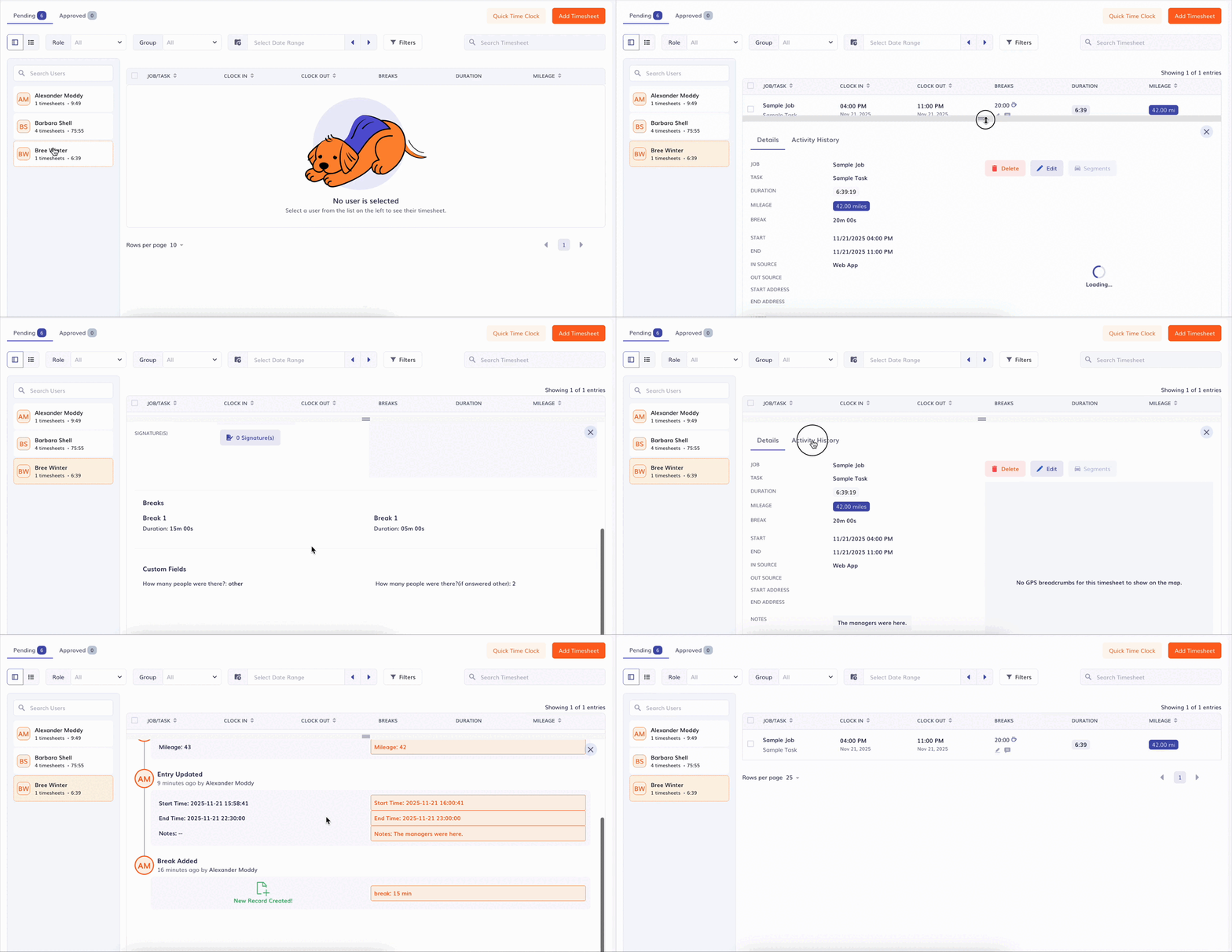
Clicking on a timesheet opens a detailed view, giving you access to two sections: Details and Activity History.
Details include:
- Job
- Task
- Duration
- Mileage
- Start time
- End time
- In source
- Out source
- Flagged
- Notes
- Custom fields
- Attachments
- Signatures
Activity History
Here you can review the updates made on the timesheet.
FAQs
What is the purpose of the new Time & Mileage Page?
The new Time & Mileage page brings a modern workflow, improved navigation, and more powerful filtering, while still allowing you to switch back to the old version whenever you need. This update gives users faster access to timesheets, clearer visibility into details, and a more intuitive experience overall.
Does this page show totals for the date range selected?
No, in order to see totals for a specific date range, you will need to run a report on the Reports tab.
How do I see segmented tracking on the new view?
Select "Segments" above the route when you are viewing the timesheet details.
Why doesn't the search function work in the new view?
If you are trying to filter or search a specific users, you can do so in the users section. The main search bar is for jobs and tasks within a user. Select a user on the left hand side and then search for a job or task.