![logo - 512.png]](https://help.timeero.com/hs-fs/hubfs/logo%20-%20512.png?width=75&height=75&name=logo%20-%20512.png)
Learn How to:
- To share Timesheet data with ADP Workforce Now (WFN)
- Export start and end times, along with recorded mileage, directly to ADP WFN
You must have the ADP Workforce Now Essentials Time add-on in your ADP account to access this feature.
How Do I Configure the Integration Settings?
- Go to Company Settings
- Scroll to the bottom until you see Integration Settings
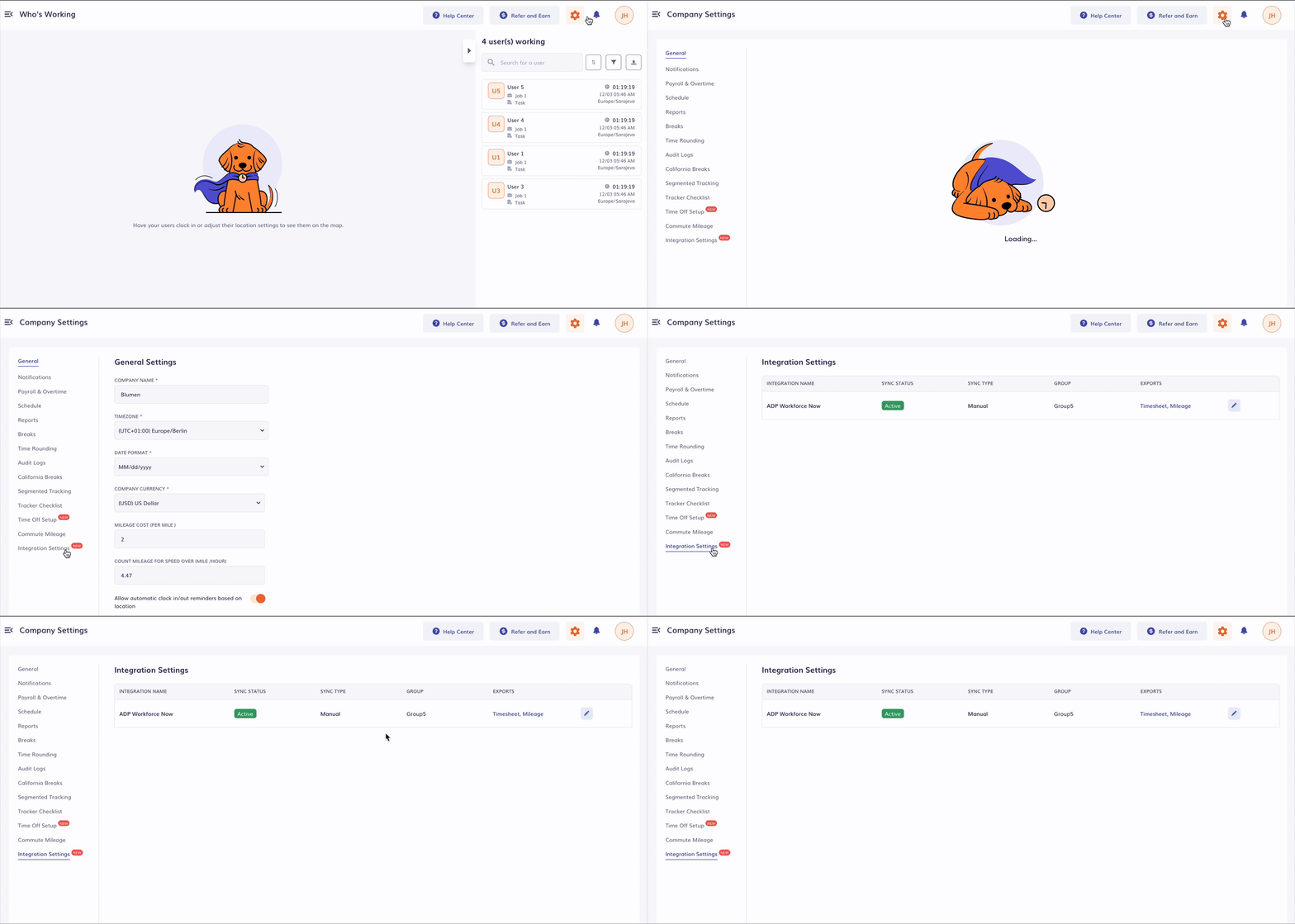
This is where you choose how your data is sent to ADP WFN—either manually or automatically.
3. Click the pencil icon to open Update Settings. Here you can customize
- Active/Inactive – Indicates if the Integration setting is active or inactive
- Group – Choose which users these settings apply to based on a group
- Sync Type – Select manual or automatic export
- Include Clock Out Time
Disabled → sends both start and end times
Enabled → sends only the start time
- Export Mileage Compensation – Sends mileage data
- Mileage Pay Code – Required for mileage cost to export correctly
4. After selecting your preferences (for example, Automatic Sync) click Update.
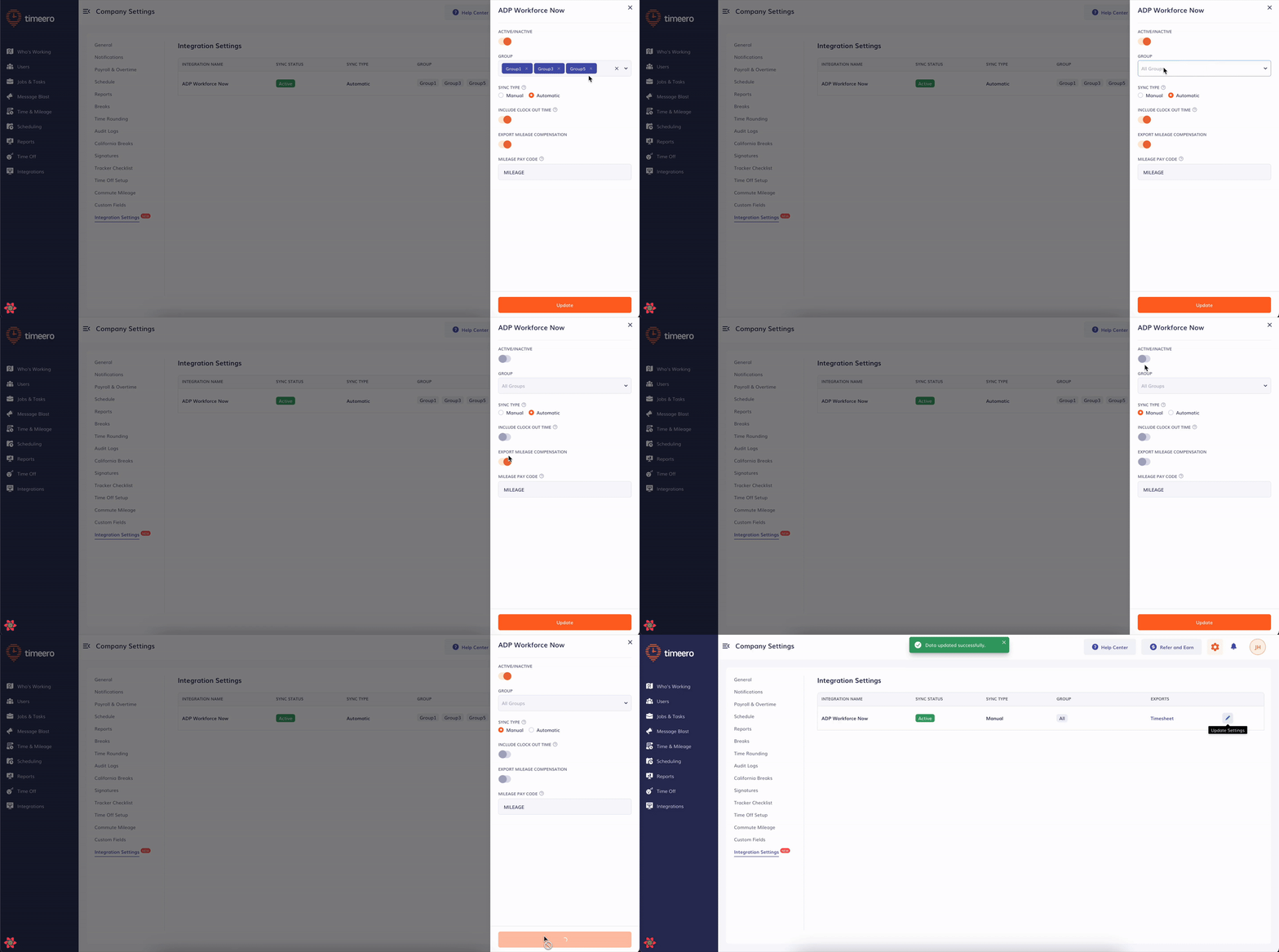
*When running a report, ensure that the user you want to generate data for belongs to the group configured in Integration Settings.
How Does the Automatic Sync Work?
- When automatic sync is enabled, every time a user in the selected group clocks out, their start time, end time, and mileage are automatically exported to ADP WFN.
- The data will appear under the user’s Individual Timecard in ADP WFN.
- The mapped employee must have Time & Attendance enabled in ADP WFN. Otherwise, the export will not go through.
How Do Manual Syncs Work?
If manual sync is selected, the data is not exported immediately. Instead, it will appear with a Pending status.
To review and manage pending exports:
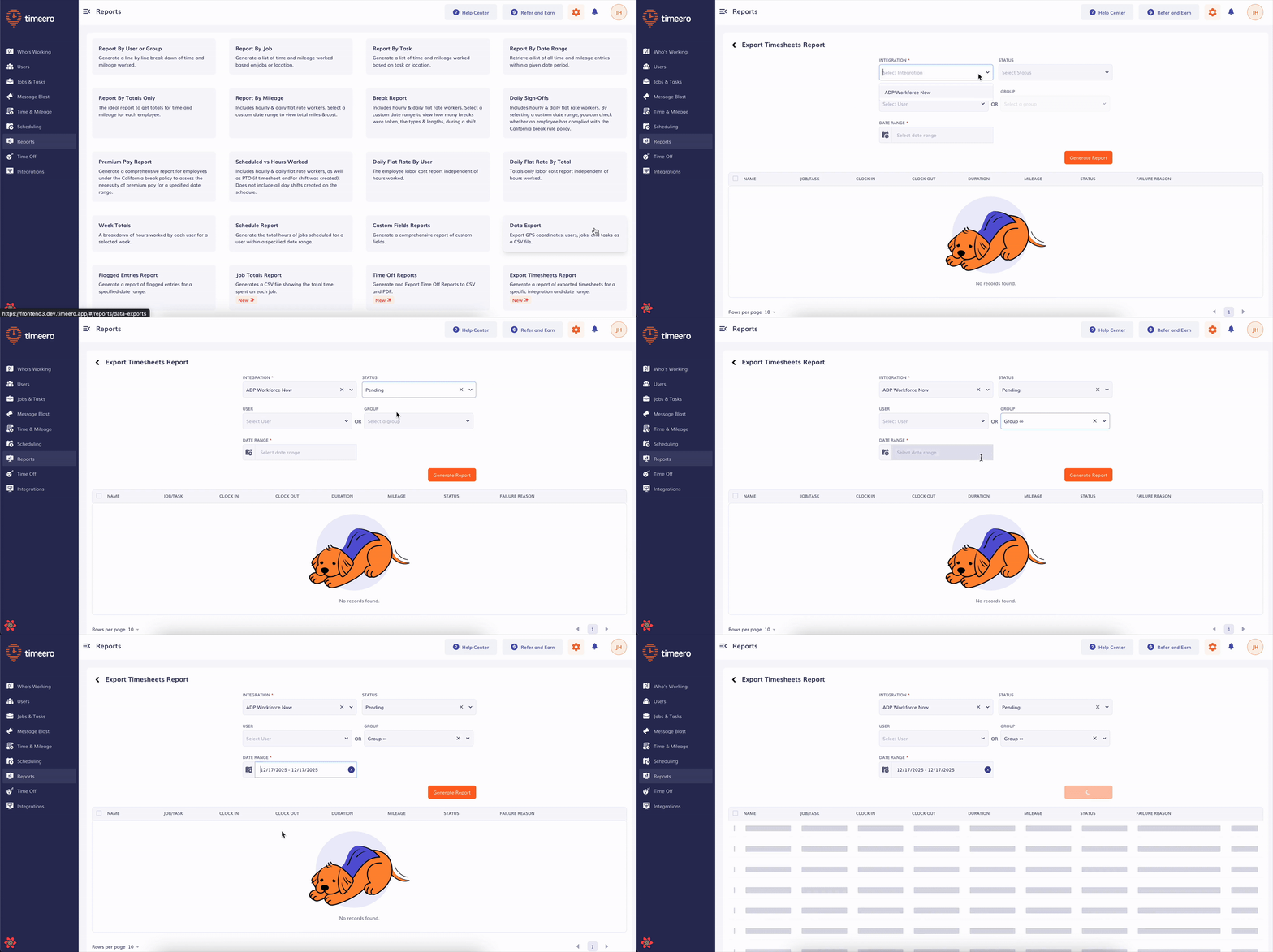
- Go to Reports
- Open Export Timesheets Report
- Filter by user, group, status, integration, or date range
If you want to see all pending data:
- Select the integration (ADP WFN)
- Select the date range
- Choose pending status
From here, you can manually export any entry by clicking Sync → Yes to confirm.
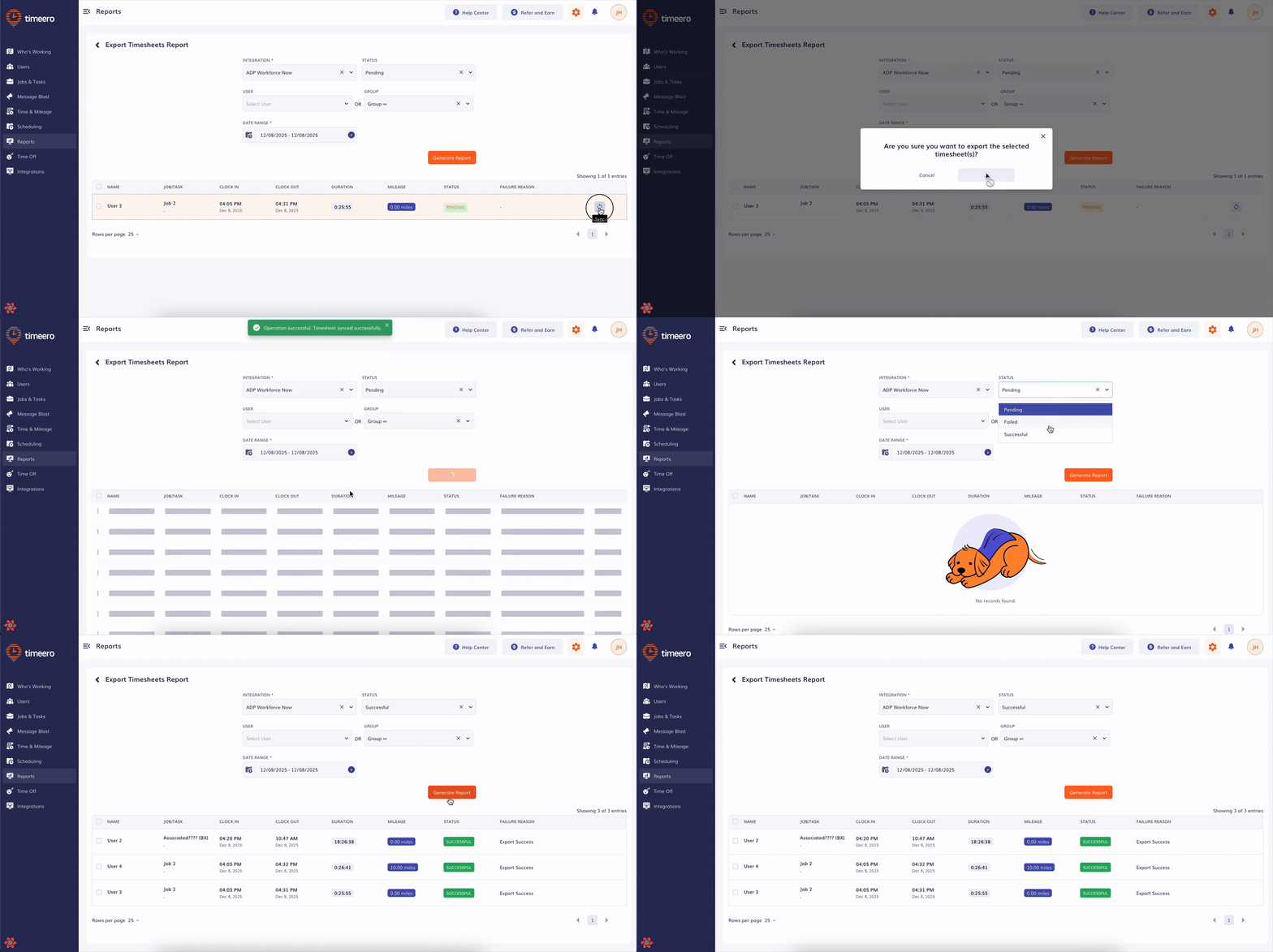
This report also shows:
- Successful exports
- Failed exports - reasons for failure (for easier troubleshooting)
FAQs
Does ADP WFN support time durations longer than 24 hours?
No, If a timesheet exceeds 24 hours, ADP will display it under the start date of when the timesheet started recording time, and it will show all the recorded hours under that one date.
What happens if I disable the export?
The setting will become inactive, but when the user clocks out it will still show up under Pending in Report.
How do I make sure my breaks are accounted for in ADP?
Turn on the Include Clock Out Time option so the exported timesheets can account for your employees' break times captured in Timeero.
If I am using automatic exports and I edit a timesheet in Timeero will those changes show in ADP?
No, the timesheets export as soon as the user clocks out. Any edits made after the clock out will not export or transfer to ADP. It is best to make edits directly in ADP in this case.