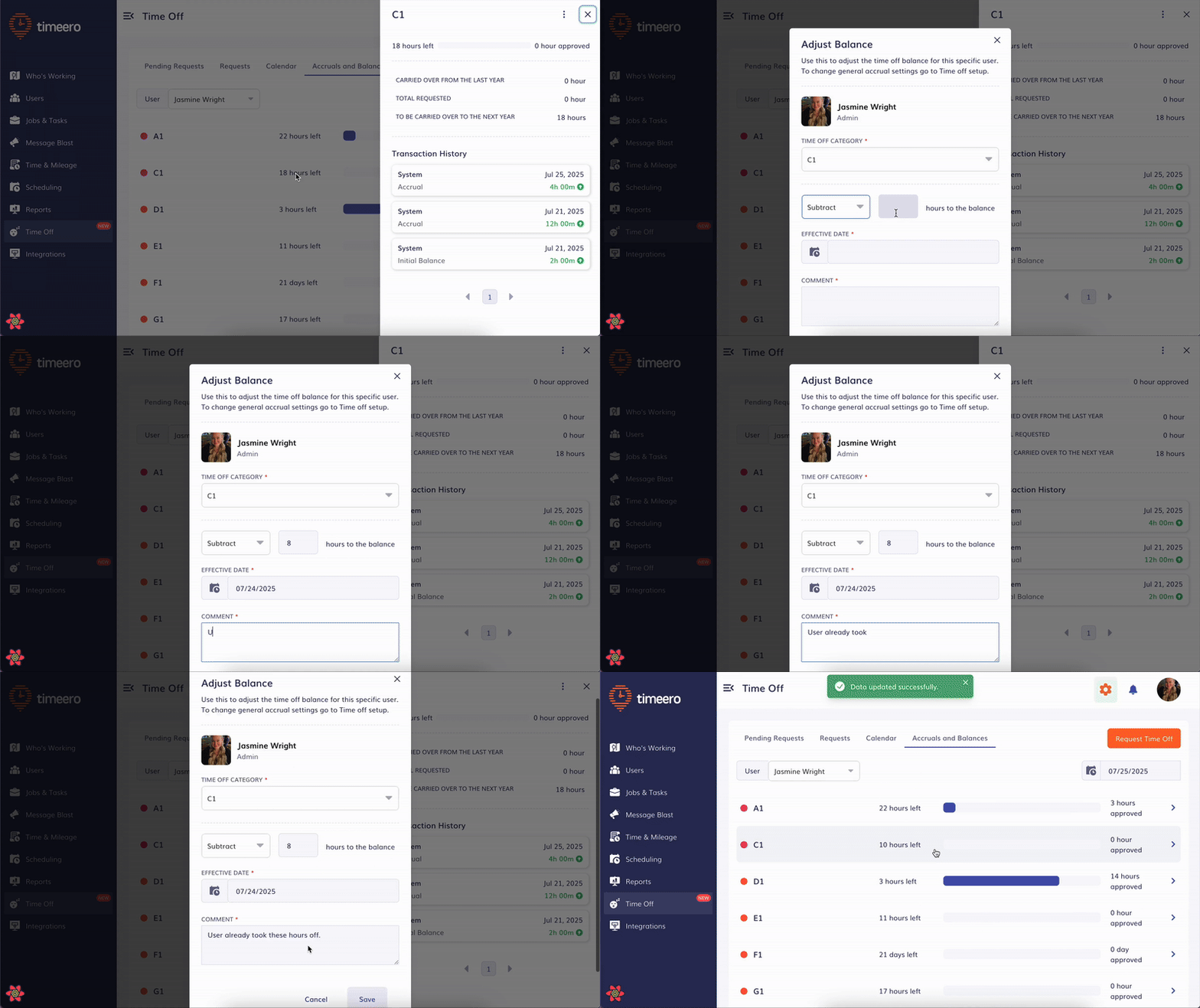
![logo - 512.png]](https://help.timeero.com/hs-fs/hubfs/logo%20-%20512.png?width=75&height=75&name=logo%20-%20512.png)
Learn How to:
- Navigate the Accruals and Balances page on the Timeero Web Portal.
- Adjust users' time off accrual balances.
How do I Manage Accruals and Balances?
-
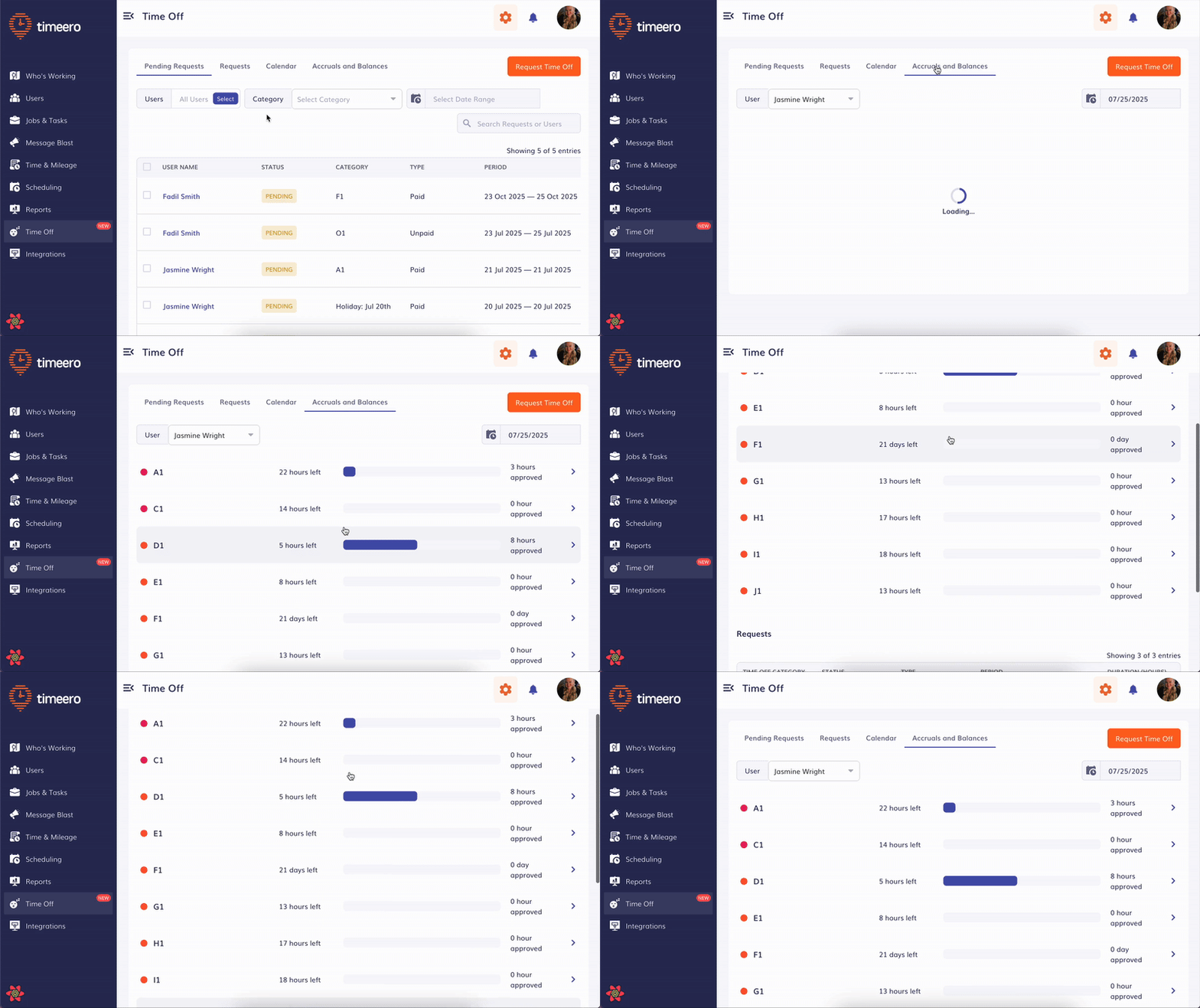
Navigate to the Time Off page, then click on Accrual and Balances.
-
This section displays a list of time off categories with available or used balances for a selected user.
- Only categories with accrued time will appear here.
- Categories without accrual settings are excluded (as they have no balance to track).
How do I Select a User?
-
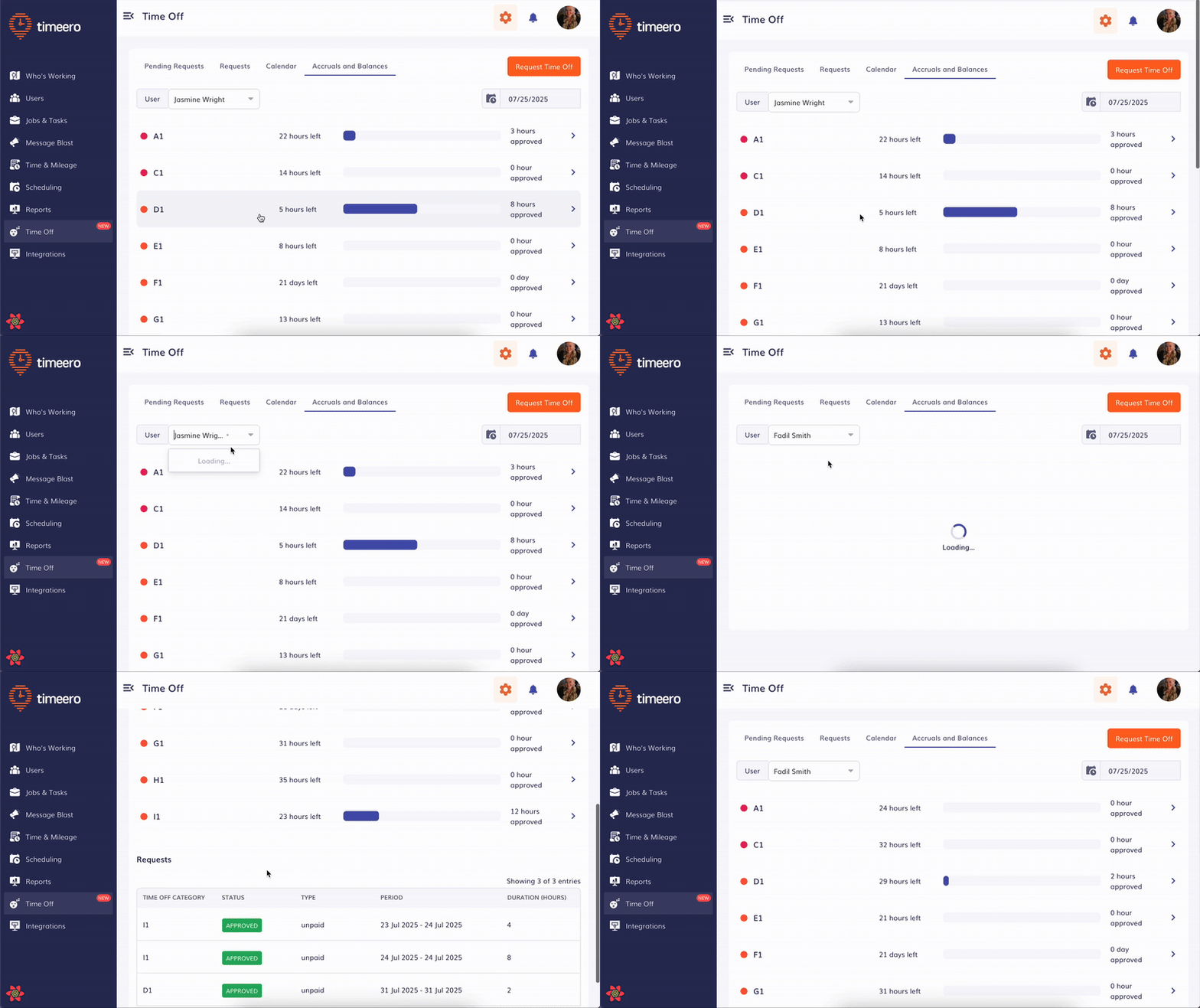
At the top of the page, a User dropdown allows you to switch between employees.
-
By default, the dropdown auto-selects the user currently logged in on the Timeero web app.
What is the Balance Overview List?
Each time off category listed shows the following:
-
Category Name: Examples include General Time Off, Birthdays, or Vacation.
-
Unit: Indicates whether time off is tracked in days or hours.
-
Used: Shows the amount of time off already taken (e.g., "164 hours used").
-
Remaining: Displays how much time off is still available (e.g., "1 hour left").
-
Progress Bar: A visual indicator representing how much of the allocated time off has been used.
-
Arrow Icon: Tap to expand and view full details in a side panel.
How do I Use the Date Filter + Requests Section?
- A calendar icon in the top right lets you filter the data by a specific date.
- At the bottom of the page, a Requests table will display all time off entries matching the selected date.
- Fields include: Time Off Category, Status, Type, Period, Duration
- Actions include: view 👁️, approve ✅, reject ❌, delete 🗑️
- Fields include: Time Off Category, Status, Type, Period, Duration
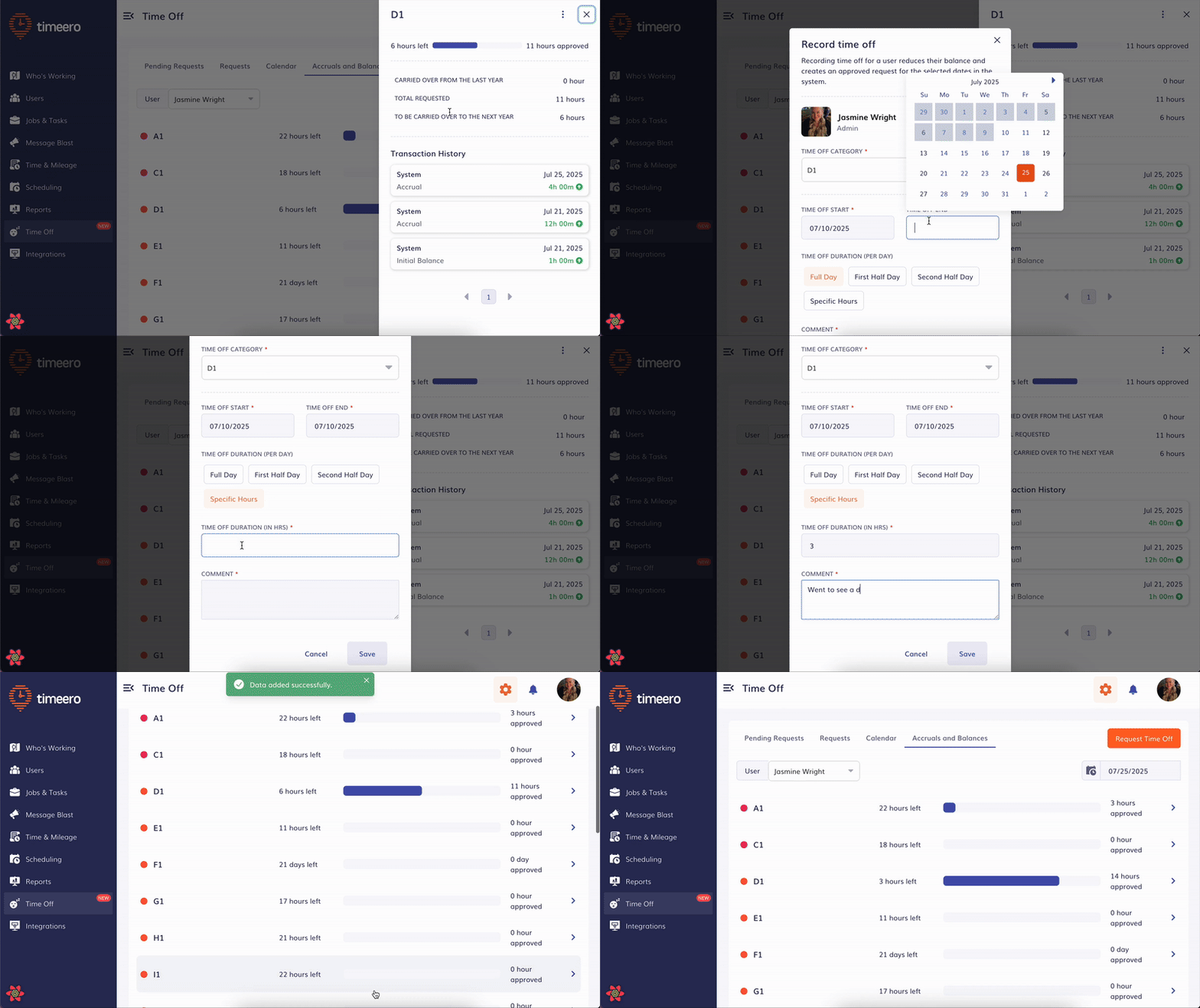
What can I See on the Detailed Sidebar View?
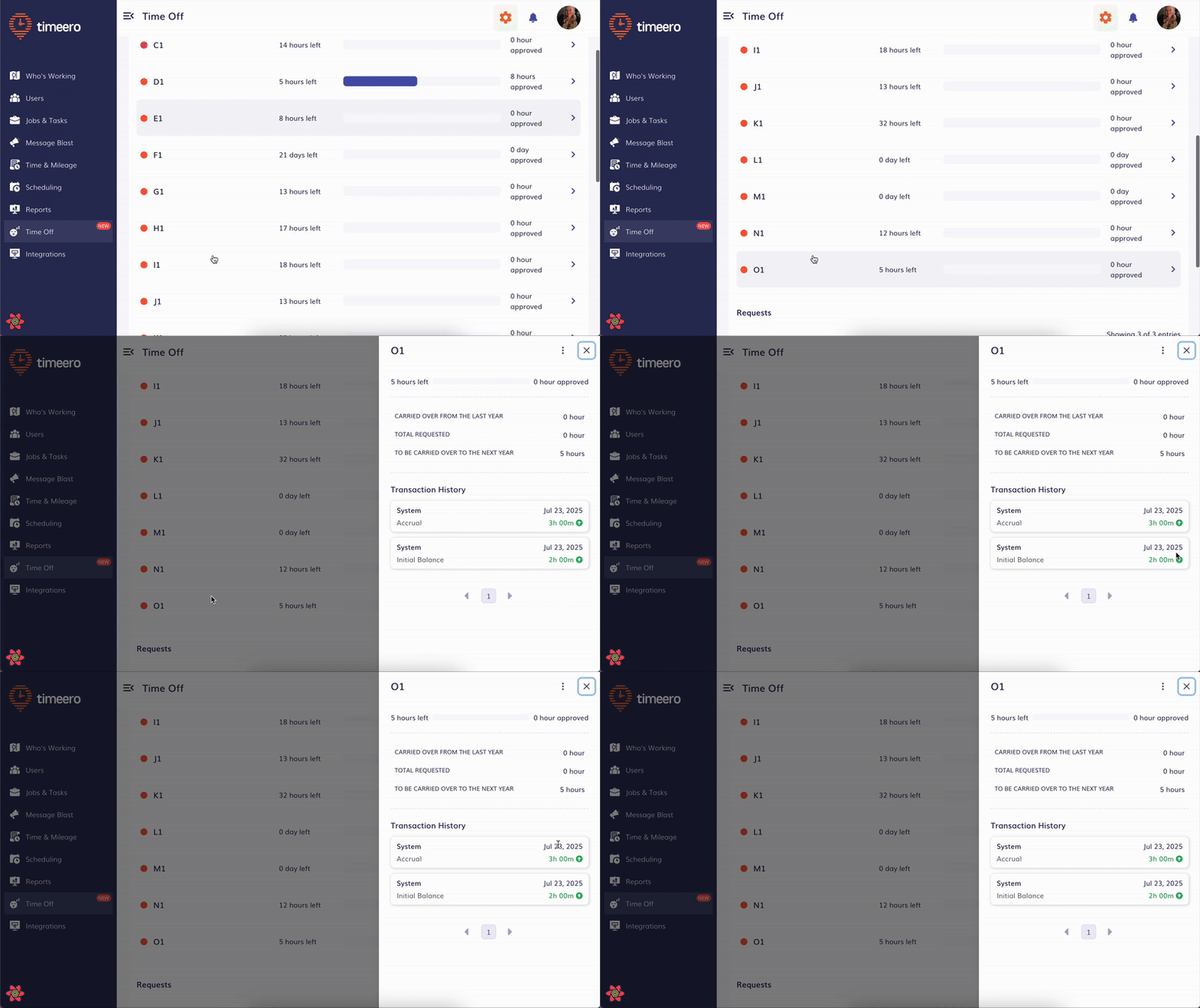
Tapping on any time off category opens a sidebar with more granular data:
Balance Details:
- Carried Over from Last Year - all the time off left unused from last year
- Total Requested - shows how many hours/days of time off have been approved
- To Be Carried Over to Next Year - shows the current balance, and once the new year starts, what that balance say it will be carried to the next year
Transaction History:
Displays logs of all balance changes, including:
- Manual adjustments by admins
- Automated accrual entries by the system
Admin Options Menu:
In the sidebar, tap the three dots ⋮ in the top-right corner for two important admin actions:
-
Record Time Off: Allows an admin to manually log a time off request, such as for retroactive emergencies.
-
Adjust Balance: Enables an admin to manually add or subtract hours or days from a user's time off balance.