![logo - 512.png]](https://help.timeero.com/hs-fs/hubfs/logo%20-%20512.png?width=75&height=75&name=logo%20-%20512.png)
Learn How To:
- Connect Timeero with BambooHR.
- Map employees, jobs, tasks, and time off with BambooHR.
- Set up Automatic or Manual exports from Timeero to BambooHR.
How do I Enable the Integration?
- Go to the Integrations tab on your Timeero web application.
- Select BambooHR.
- Go to Configuration and select Enable.
- Enter your Company Domain and select Submit.
- Login to your BambooHR Account and Allow Access.
How do I Configure Mappings?
Once the BambooHR Integration is enabled, you will need to map your employees, jobs, tasks, and PTO.
- From the Configuration page on the integration, select View Mapping.
- You will see a list of all employees in Bamboo HR. Select the corresponding users from the Timeero Employees column.
- Select Map Employee next to each one.
- Use the tabs at the top of the page to repeat this process with Jobs, tasks, and time off.
- Map BambooHR Projects to Jobs in Timeero.
- Map BambooHR Tasks to Tasks in Timeero.
- Map BambooHR Time Off Categories to the matching categories in Timeero.
*Proper mapping is required for successful timesheet exports.
How do I Manage BambooHR Integration Settings?
- Navigate to Company Settings.
- Select Integration Settings.
- Locate BambooHR and click the Pencil/Edit icon.
- Configure the available options:
- Active/Inactive - Enable or disable the integration.
- Group Selection - Choose which groups' timesheets can be exported to BambooHR.
- Sync Type - Select either Automatic or Manual synchronization.
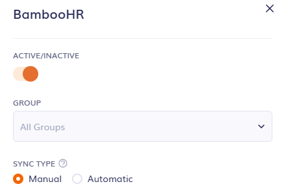
- Save your changes by selecting Update at the bottom of the page.
How Does the Automatic Sync Work?
When Automatic Sync is enabled, eligible timesheets are automatically exported to BambooHR after the user clocks out.
For a timesheet to be exported successfully:
- The employee must be mapped between Timeero and BambooHR.
- The selected Job in Timeero must match a Project in BambooHR.
- If the BambooHR Project contains Tasks, the employee must select the matching Task when clocking in.
- The employee must be assigned to the Project in BambooHR.
How Does the Manual Sync Work?
If Manual Sync is enabled, administrators can manually export approved timesheets to BambooHR whenever needed.
To Export:
- Go to the Reports tab in Timeero.
- Select the Export Timesheets Report.
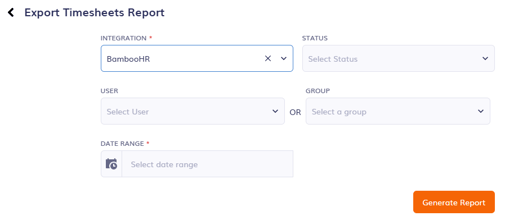
- Select the Integration, User or Group, and Date Range.
- Choose which status you want to run the report for.
- Select Pending to see any timesheets that have not been exported yet and export them.
- Select Failed to see any timesheets that were unable to export.
- Select Successful to see timesheets that have already been exported.
- Select Generate Report.
- For Pending timesheets, select the Sync icon
 to export the timesheet or check the box next to the timesheets and then select Submit to export multiple timesheets at a time.
 - For Failed timesheets, you can export them again by selecting the checkbox and then selecting Submit, or you can select the Resubmit icon
 next to each timesheet.
*The same validation rules apply to manual exports. Timesheets that do not meet the project and task requirements will not be exported.
What are the Project and Task Requirements?
Projects and Tasks must match between BambooHR and Timeero.
Example: Project with Tasks
In BambooHR:
- Project X
- Task X
- Task Y
- Task Z
In Timeero:
- Job: Project X
- Task X
- Task Y
- Task Z
When an employee clocks in using Project X, they must also select one of the associated tasks (Task X, Task Y, or Task Z).
*If the employee clocks into Project X without selecting a task, the timesheet will not be exported to BambooHR through either automatic or manual sync.
Example: Project without Tasks
Some BambooHR projects may not contain any tasks.
In this situation:
- The employee should select the matching Job/Project in Timeero.
- No Task should be selected.