![logo - 512.png]](https://help.timeero.com/hs-fs/hubfs/logo%20-%20512.png?width=75&height=75&name=logo%20-%20512.png)

*Approvals need to be done by Admins or Managers with permissions. If you are an Employee, please see the article on Submitting Timesheets.
How do I View Entry Submissions on the Mobile App?
- Go to the Entries tab.
- Select Submit at the top of the page.
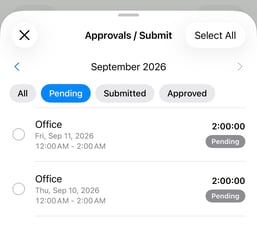
- View the current month or use the back arrow next to the month to view a different month.

- Use the All tab to see all entries for the month and submit pending entries.
- Use the Pending tab to see all entries that have not been submitted.
- Use the Submitted tab to see all entries that have been submitted.
- Use the Approved tab to see all entries that have already been approved.
*Entries can be approved from the All, Pending, or Submitted tab.
How do I Approve Entries on the Mobile App?
- Go to the Entries tab.
- Select Approve at the top of the page.
- Select the tab you want to approve entries from.
- Select the checkbox next to the entries you want to submit or click Select All.
- Select Approve.
- Enter your signature if required and select Save.
- Fill in the Custom Fields if required and select Continue.
- Keep Notify employees of this submission on if you want to let your employees know their entries have been approved, or turn it off to avoid sending the notification.
- Select Approve.