![logo - 512.png]](https://help.timeero.com/hs-fs/hubfs/logo%20-%20512.png?width=75&height=75&name=logo%20-%20512.png)


Learn How:
-
Classes in QuickBooks Desktop align with Groups in Timeero
-
If you're using QuickBooks Desktop classes, you may want to create groups inside Timeero and map them.
-
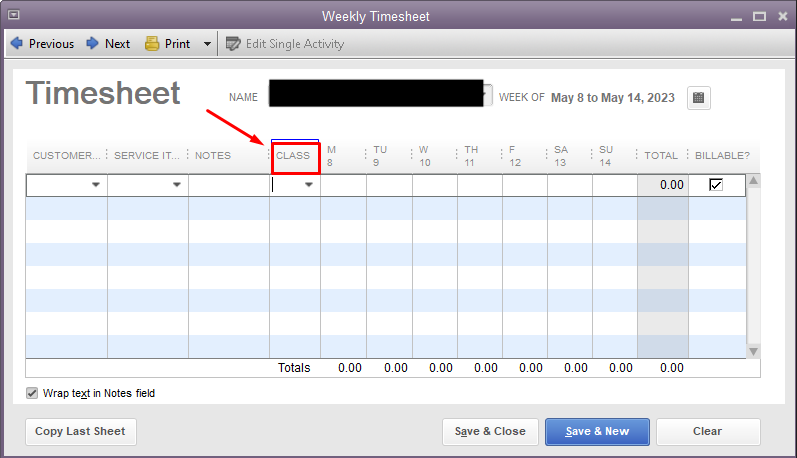
When you export time from Timeero to QuickBooks Desktop, with the correct settings, the class can be viewed on the timesheet inside QuickBooks Desktop.
-
First, create your Groups inside Timeero. Give those groups the same names as you have for your classes in QuickBooks Desktop.
How Do I Map my Classes to Groups?
- Log into the Timeero web portal.
- Go to Integrations > QuickBooks Desktop > Configuration > Configure Mappings > Classes.
- Map your classes to groups by using the dropdown menu in the mapping column.
How Can I Turn on Class Tracking?
- Log into QuickBooks Desktop.
-
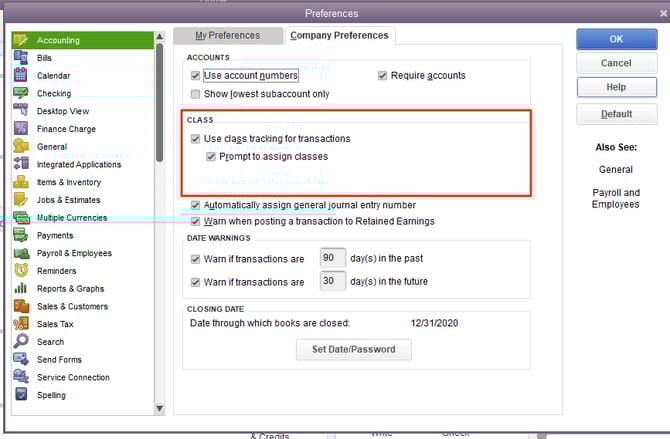
Turn class tracking on in Edit > Preferences > Accounting > Company Preferences.
-
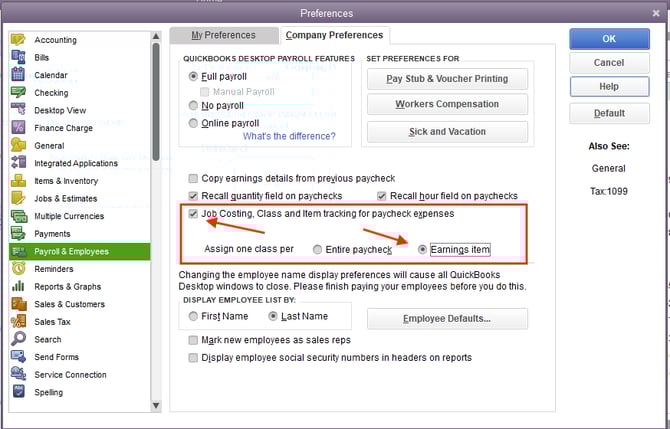
Then, turn it on in the Payroll & Employees settings.
 Your timesheets in QuickBooks Desktop should now include the class: